Photo editing used to be a chore of sliders and masks. You had to spend hours mastering the lasso tool. But is that the case in 2026? Not quite. Manual labor is obsolete to an impressive extent. The Gemini 3.0 models have transformed the creative process by using the Nano Banana 2 engine to turn (or create) your ideas into real results. This tutorial shows you how to use Gemini for photo editing. You will learn to edit images solely with your words and creative intent.
The Engine Behind Gemini’s Photo Editing Capabilities

To use Gemini effectively, you must understand the hardware. The latest version of the Gemini web app uses the Nano Banana 2 model (here’s how it compares to Midjourney, BTW). This is the official name for the Gemini 3 Flash Image. It represents a massive leap over the previous Pro models. It handles text-to-image, image editing, and complex compositions.
If you are a Pro or Ultra subscriber, you have an extra gear. You can access Nano Banana Pro. This model offers higher fidelity and better spatial reasoning. You access it by generating an image first. Then you click the three-dot menu and select “Redo with Pro.” For most daily edits, the standard Nano Banana 2 is more than enough.
Step 1: Uploading and Initial Analysis
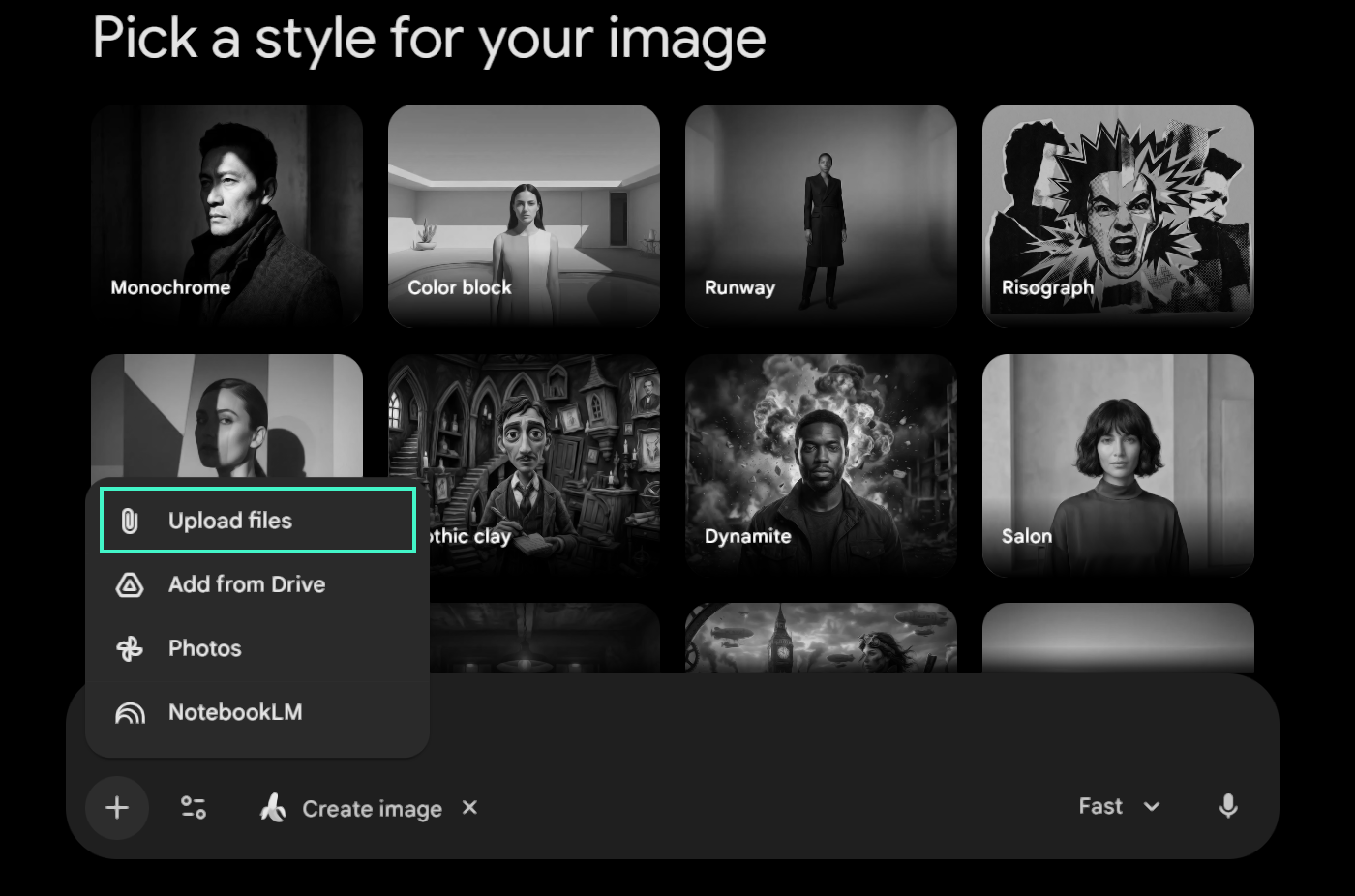
Start by uploading your base image. Gemini needs to “see” what it is working with. You can drag and drop files into the web interface. On mobile, you can use the Gemini Live mode to share your camera feed.
Once the image is uploaded, do not just give a vague command. Ask Gemini to describe the image back to you. This ensures the AI understands the lighting, the subjects, and the depth.

Pro Tip: If Gemini identifies a “red car” but you see it as “maroon,” correct it immediately. Accurate definitions lead to better edits.
Step 2: Descriptive Editing (The “Ask”)
The core of 2026 photo editing is the “Image + Text” prompt. You are not just applying a filter. You are rewriting the scene.
Common Editing Commands
| Object Removal | “Remove the power lines from the sky.” | Clean, generative fill of the background. |
| Lighting Shift | “Change the lighting to Golden Hour.” | Warm tones and long shadows appear. |
| Subject Modification | “Change the subject’s shirt to a blue linen texture.” | Realistic fabric swap with original folds. |
| Background Swap | “Place this person in a futuristic Tokyo street.” | Seamless integration with correct reflections. |
Always use active verbs. Say “Replace the background” instead of “I would like the background to be different.” Assertive language gives the model clearer instructions.
Here are some more examples:
Advanced Composition & Style
- Cinematic Depth Expansion: “Expand the canvas to a 16:9 aspect ratio and fill the sides with a blurred, out-of-focus crowd to create a shallow depth of field.”
- Atmospheric Integration: “Add a heavy morning mist to the forest floor and ensure the sunlight creates distinct Tyndall effect rays (god rays) through the canopy.”
- Hyper-Realistic Texture Swap: “Replace the smooth plastic surface of the table with aged, dark mahogany wood, complete with realistic grain and a slight glossy reflection.”
Lighting & Material Physics
- Reflective Surface Realism: “Place a puddle on the pavement and render a perfect, distorted reflection of the neon signs above.”
- Dynamic Light Source: “Shift the primary light source to the far right and cast long, dramatic shadows across the subject’s face in a ‘Rembrandt lighting’ style.”
- Material Translucency: “Change the solid glass bottle to a frosted sea-glass texture, making the liquid inside appear diffused and soft.”
Complex Character & Wardrobe
- Era-Specific Transformation: “Modify the subject’s modern outfit into a 1920s Great Gatsby style, incorporating a beaded charcoal vest and a newsboy cap with matching wool texture.”
- Expressive Modification: “Adjust the subject’s expression to a subtle, knowing smirk and tilt their head five degrees toward the camera.”
- Weather-Impact Styling: “Add a ‘wet’ effect to the subject’s hair and clothes as if they are standing in a heavy downpour, including realistic water droplets on the skin.”
Step 3: Mastering Composition and Style Transfer
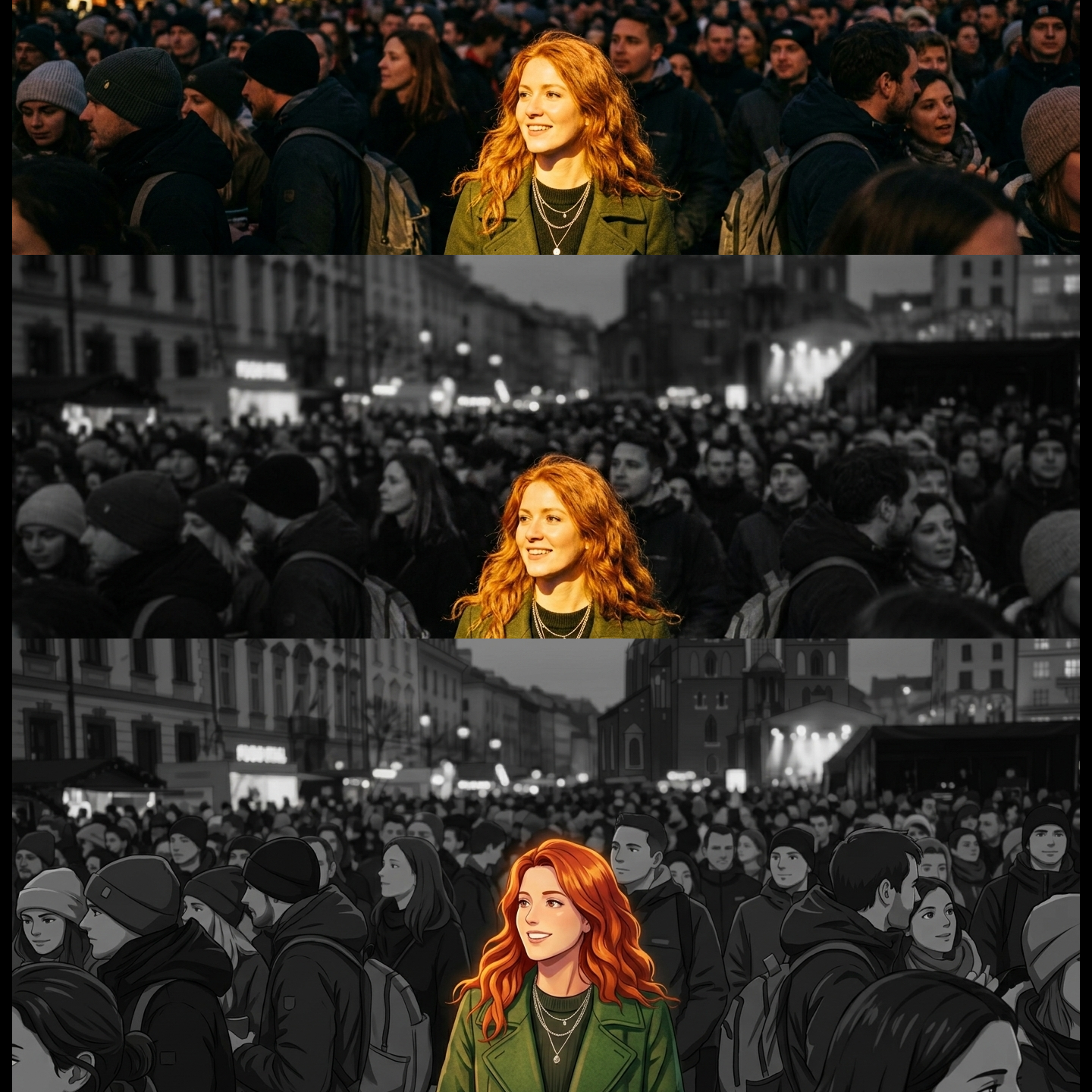
Gemini 3 Flash excels at Multi-Image-to-Image composition. This is the most powerful feature in 2026. You can take a subject from one photo and a style from another.
To do this, upload both images. Your prompt should be specific about the hierarchy. For example: “Take the person from Image A and place them in the environment of Image B. Use the oil painting style found in Image C.”
The AI handles the perspective and color matching. You no longer need to worry about mismatched white balances. Gemini calculates the global illumination of the target scene. It then applies those light paths to the new subject.
Step 4: The Refinement Loop
Rarely is the first edit perfect. In 2026, we use the “Refinement Loop.” If the AI adds an object but the scale is wrong, tell it.
“The cat on the sofa is too large. Reduce its size by 30 percent and move it left.”
Gemini understands spatial commands. You do not need to provide coordinates. Use relative terms like “higher,” “behind,” or “near the edge.” This conversational approach is faster than manual dragging.
Using Nano Banana Pro

If the textures look slightly “AI-generated,” it is time to upgrade the specific frame.
- Click the three-dot menu on the generated image.
- Select Redo with Pro.
- The Nano Banana Pro model will re-render the scene.
- This adds skin pores, realistic lens flare, and complex reflections.
Using Gemini Live for On-the-Go Editing
The mobile experience has changed. You can now edit photos in real-time using Gemini Live. Imagine you are taking a photo of a landmark. You see a distracting tourist in the background.
Open Gemini Live and share your camera. Speak to the AI while you frame the shot. “Gemini, I am going to take this photo. Can you remove the person on the left and enhance the sunset?”
The AI processes the request almost instantly. It delivers an edited version seconds after you click the shutter. This workflow bridges the gap between photography and post-production.
Advanced Prompting for Professional Results
In 2026, prompt engineering is about technical descriptors. If you want a specific “look,” use photography terminology. The Nano Banana 2 engine understands lens physics.
Technical Keywords to Use:
- Depth of Field: “Render with an f/1.8 aperture for a soft bokeh.”
- Focal Length: “Make the image look like it was shot on a 35mm wide-angle lens.”
- Film Stock: “Apply the grain and color profile of Kodak Portra 400.”
- Dynamic Range: “Increase the shadow detail without blowing out the highlights.”
Using these terms forces the AI to follow professional standards. It prevents the “plastic” look often associated with basic AI tools.
Ethics, Watermarking, and SynthID
Transparency is vital in the 2026 creative landscape. Every image modified by Gemini includes SynthID. This is a digital watermark embedded in the pixels. It is invisible to the human eye but detectable by software.
This tool protects the integrity of digital media. It ensures people can distinguish between captured reality and AI-enhanced art. When you share your edited photos, the metadata will reflect the use of Lyria or Nano Banana engines. This is a standard practice for all professional AI tools today.
Troubleshooting Common Issues
Sometimes the AI struggles with complex geometry. If you see “hallucinations” like extra fingers or warped edges, simplify your prompt.
If the image is too busy:
“Reduce the clutter in the background. Focus the viewer’s eye on the central subject.”
If the colors are muddy:
“Reset the color palette. Use vibrant, high-contrast primary colors.”
Direct, assertive corrections are the best way to get the AI back on track. Do not be afraid to “argue” with the model until the vision matches your intent.
Wrapping Up
Complex photo-editing software may soon be obsolete. Gemini 3 Flash + Nano Banana 2 put professional-grade visuals within reach of clear language alone. You’re the creative director now, not a button-clicking technician. Nail the prompt and run the Refinement Loop—seconds later, you have polished, print-ready results.